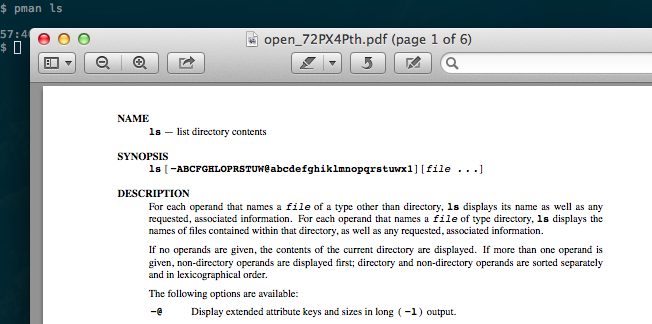
View Man Pages with Preview on Mac OS X
I am always looking for better ways to integrate the unix components into Mac OS X. I recently came across a great way to connect the man pages to a more visual mode in OS X.
· 2 min read
I settled on a solution that uses preview. Preview provides an easy solution to get great fonts and rendering native to the OS without much work from a shell script. Preview also allows for other functionality like bookmarks, highlighting, pagination, saving, etc.
The script is rather simple. It is essential opening the man page in the background and piping the pages to groff. Groff then outputs a postscript file of the man page which is then opened with preview. The script goes in your ~/.bash_profile as function that you call as a program in place of man. I have modified the original function slightly so it supports passing in the man page section as well.
The default usage of pman will mirror man. If you only pass it one argument it will display the man page. If you pass it two arguments it will treat the first one as the man page section and the second the man page you would like to view.
I would like to give Macworld credit for this as that is where I originally found the tip.
Editing your bash profile and adding the function #
Edit your ~/.bash_profile.
vi ~/.bash_profileInsert the following function someplace in your ~/.bash_profile:
pman() {
    man -t ${@} | open -f -a /Applications/Preview.app/
}Source your ~/.bash_profile to load the new function.
. ~/.bash_profileViewing man pages with preview #
Viewing man pages with preview is now as simple as using pman instead of man. It may take a few seconds for the man page to open depending on the speed of your machine.
Some Examples: #
View man pages for manual:
pman manView man pages for chroot
pman chrootView chroot(2)
pman 2 chrootView the manual page for ls #
pman ls